The Windows warning on first start
The first time you start DreamHelper, SekaiHelper and CanisHelper, Windows shows "Windows protected your PC". These apps carry no digital signature naming their publisher, and Windows shows this warning when it starts an unsigned app it does not recognise yet. It does not mean a virus was found.
When you see "Windows protected your PC"
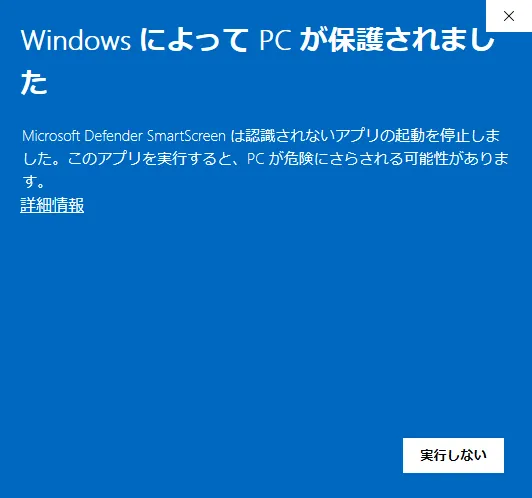
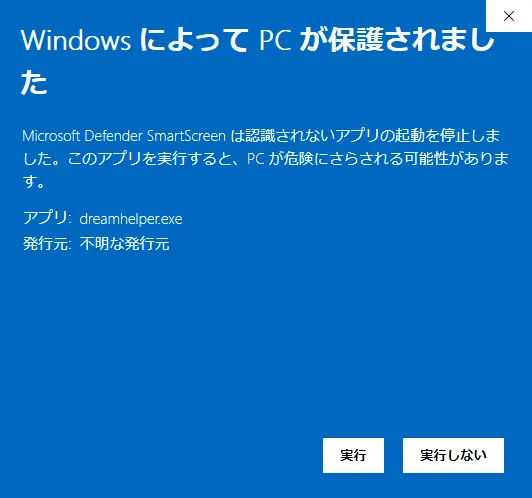
- Click "More info"
- Check that "App:" is one of dreamhelper.exe, sekaihelper.exe, canishelper.exe. "Publisher:" reads "Unknown publisher"
- Click "Run anyway"
Once you click "Run anyway", the same app does not show it again, nor after you update it from inside the app. It can show again when you download and extract a new zip from the account page.
Remove the warning before extracting
Do this before you extract the zip and the app starts without the warning. Do it only for a zip you downloaded from the account page.
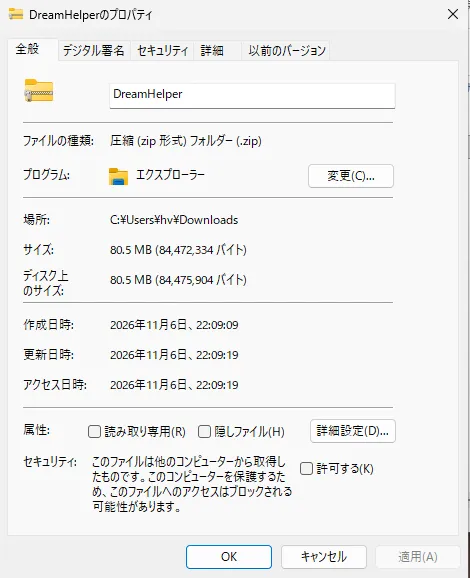
- Right-click the downloaded zip and open "Properties"
- On the "General" tab, tick "Unblock" next to "Security" and click "OK"
- Right-click the zip and extract it with "Extract All"
When you see "Open File - Security Warning"
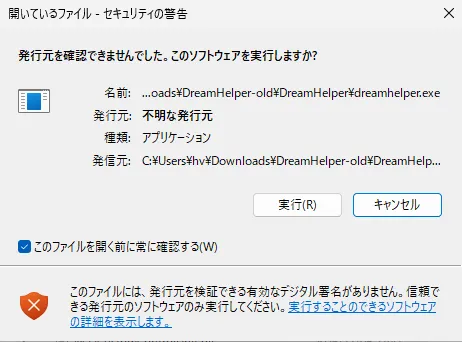
When the app is started from somewhere other than File Explorer, Windows may ask "The publisher could not be verified. Are you sure you want to run this software?". Check that "Name" is the product's exe and click "Run".
If the app does not start
- If nothing appears after "Run anyway", check where the folder is. On a PC with "Controlled folder access" on in Windows Security, an app inside "Documents" and similar folders cannot write to its own folder and closes without showing anything. Move the folder into "Downloads" and start it again.
- If a product file appears under Windows Security → "Virus & threat protection" → "Protection history", do not turn off virus protection; tell us in a support ticket on Discord.
- If Windows says "Smart App Control" blocked the app, there is no "Run anyway". Tell us in a support ticket on Discord.
Do not turn off Microsoft Defender or SmartScreen. Let the warning through only for the product apps you downloaded from the account page.