MuMu Player Setup Guide
Every emulator-based product runs on MuMu Player. The three settings below live under MuMu's Device Settings → Developer Options. Restart the emulator after changing them.
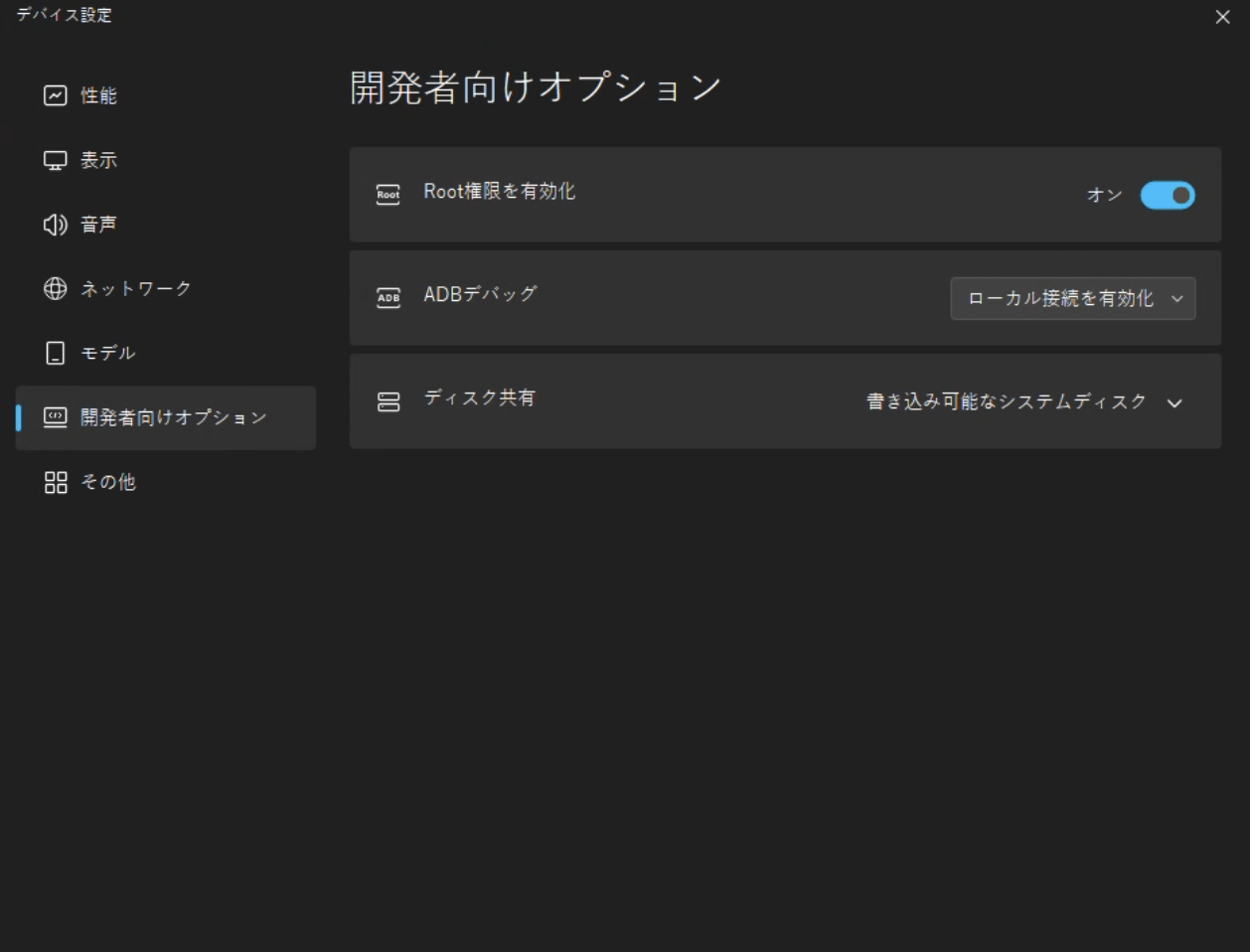
Screenshot shows the Japanese UI; the three rows are in the same place in every language.
- Enable Root Permission → On
- ADB Debugging → "Enable local connections"
- Disk Sharing → "Writable system disk"
Settings each product needs
| Product | Root Permission | ADB Debugging | Writable System Disk |
|---|---|---|---|
| DreamHelper | Not required | Required | Not required |
| SekaiHelper | Not required | Required | Not required |
| SekaiHelper Pro (JP / KR / TW) | Required | Required | Not required |
| DreamHelperGhost (only if adding an account from a device) | Required | Required | Required |
| sekaighost | No emulator needed | ||
Leaving all three enabled never causes problems. If you only use DreamHelper / SekaiHelper, Root Permission isn't required.
Recommended environment
- Windows 10 / 11
- Resolution 1280×720 (16:9); in-game, lightweight mode
- Roughly: Core i3-8100 or better, GTX 1050 Ti (2GB) or better, 8GB RAM or more, 10GB free disk space or more
If something goes wrong
If you see "MuMu not found," check ADB Debugging. If you see "root required," check Root Permission. If you see "write not permitted," check Disk Sharing — then restart the emulator. Still stuck? Reach out on Discord support.